3CX call forwarding
You can set yourself call forwarding rules for your phone system in 3CX.
To set your call forwarding go to the 3cx web client or open the 3CX PWA and sign in with Microsoft. Or open the Desktop app
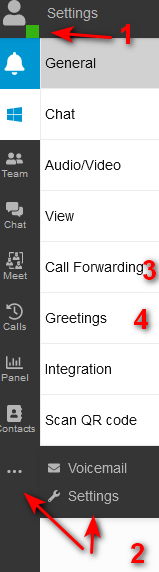
Open up settings in clicking on your profile and settings from the drop down list, or click on the three dots at the left panel. (1 or 2)
Status
Click on call forwarding . (3)
- Available (green) ringing
- Lunch (green ) ringing
- Away (red) not ringing
- Do not Disturb (red) not ringing
- Business trip (red) not ringing
Forwarding
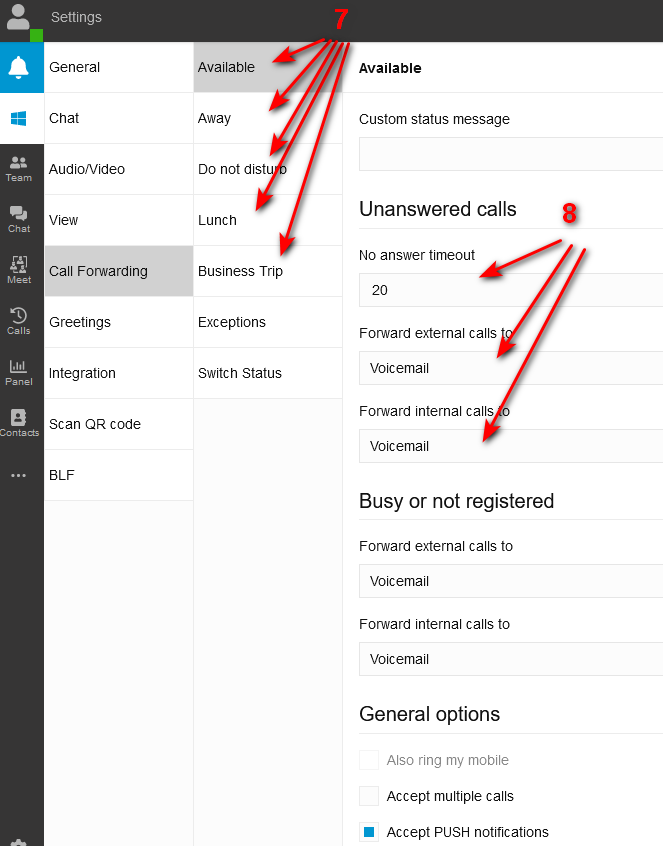
- Select the Status you like to insert the forwarding rules for (7).
- For status Available and Lunch (green), your app will ring first set seconds before forwarding.
- Alternative select Also my mobile in the bottom of the page under General options to ring your mobile the same time as your phone.
- For status Away, Do not Disturb and Business trip (red) the call will forward without ringing.
- Set rules for External calls and inbound calls while selecting the option in the drop down list. *If setting rules for green statuses set seconds before forwarding.
Custom Recordings
Optionally you can record custom massage for each status.
- Click Greetings (9)
- To Record your Greetings press the Record greetings button (10),
- Give your recording a meaningful name and click OK.
- Your phone will ring after your answer follow the voice prompt to record your massage. You can record a different massage for each status.
- After you have saved the recording, in the Greetings tab, select your recording from the drop down list of the status you like to apply the recording to.
You are able to play to confirm the massage from here.
Record Mobile number
To forward your calls to a mobile number please enter first your number in to your profile.
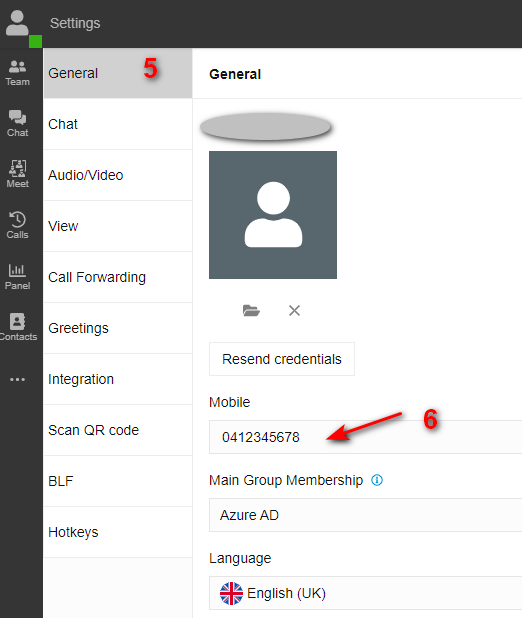
Select General (5) and insert your Mobile number (6) make sure your mobile number is entered numbers only without spice.
Usage of call forwarding
To have the desired forwarding rules in effect you switch your status of your extension. There are several options
-
Click on your Profile in the web client, desktop app or mobile app (1) and select the new status.
-
If you using a desk phone use the Diel the Code of the status you like to change to
- *30 -> Available,
- *31 -> Away,
- *32 Do not Disturb,
- *33 -> Lunch (Custom status 1)
- *34 -> Business trip (Custom status 2)
!!! Note If you have renamed your status with a custom profile name, the announcement will be for the default name.